There may be times where you need an unofficial transcript of your academic record. You can generate this yourself and download it through eServices.
1. Visit the Saint Paul College Website.

2. Click on "Menu" (top right hand corner).

3. Click on "Current Students" from the menu bar (Current Students, Employees, Alumni & Friends, D2L, Course Schedule, DIrectory).

4. Click eServices.

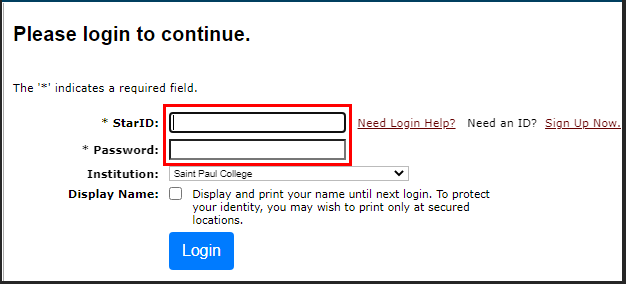
Your StarID has the following format: ab1234cd
4. Sign in using your StarID and password.
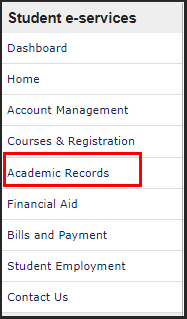
5. On the left hand side of the screen, click on "Academic Records".
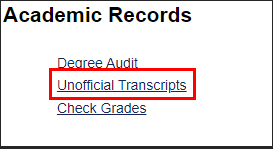
6. Select "Unofficial Transcripts".

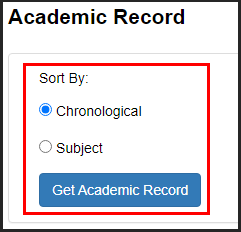
Chronological: Sort the classes you've taken and put them together by the year.
Subject: Sort the classes and group them together by their subject even if some of the classes were taken at a later date.
7. Select either "Chronological" or "Subject" and click on "Get Academic Record".
After clicking on "Get Academic Record", it will take a couple of seconds to load your transcript.
8. Click on the PDF icon to download your unofficial transcript.
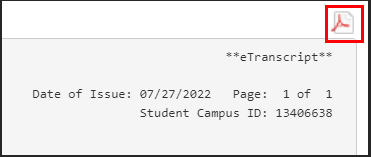
Congratulations! You have downloaded your unofficial transcript.