Article Type: How To
Question:
- How do I install and access Microsoft 365 applications?
Answer:
-
Saint Paul College students, staff, faculty can install the Microsoft 365 desktop app suite by logging in either with your my.saintpaul.edu or your saintpaul.edu email accounts. The Microsoft 365 portal https://www.office.com/ doesn’t have the full Office 365 features as the software does. You can install Microsoft 365 and activate it on up to 5 machines/devices. There is an updated direct link here to download Microsoft 365: https://www.microsoft.com/en-us/microsoft-365/download-office
-
These instructions are for Windows 10/11 machines only. Follow these instructions below:
1. Make sure your laptop/desktop is connected to the internet.
*Students log into their my.saintpaul.edu email using their starid@go.minnstate.edu alias. Staff/Faculty log in with their starid@minnstate.edu alias to access their @saintpaul.edu email.
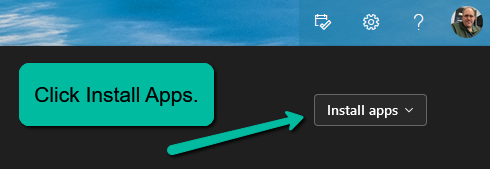
- Click on the Install Apps box.
-
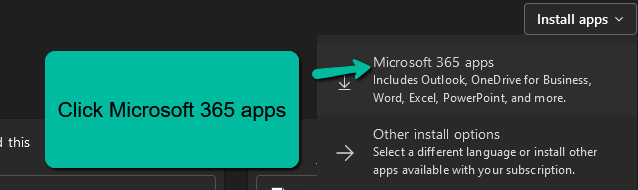
3. Click Microsoft 365 apps
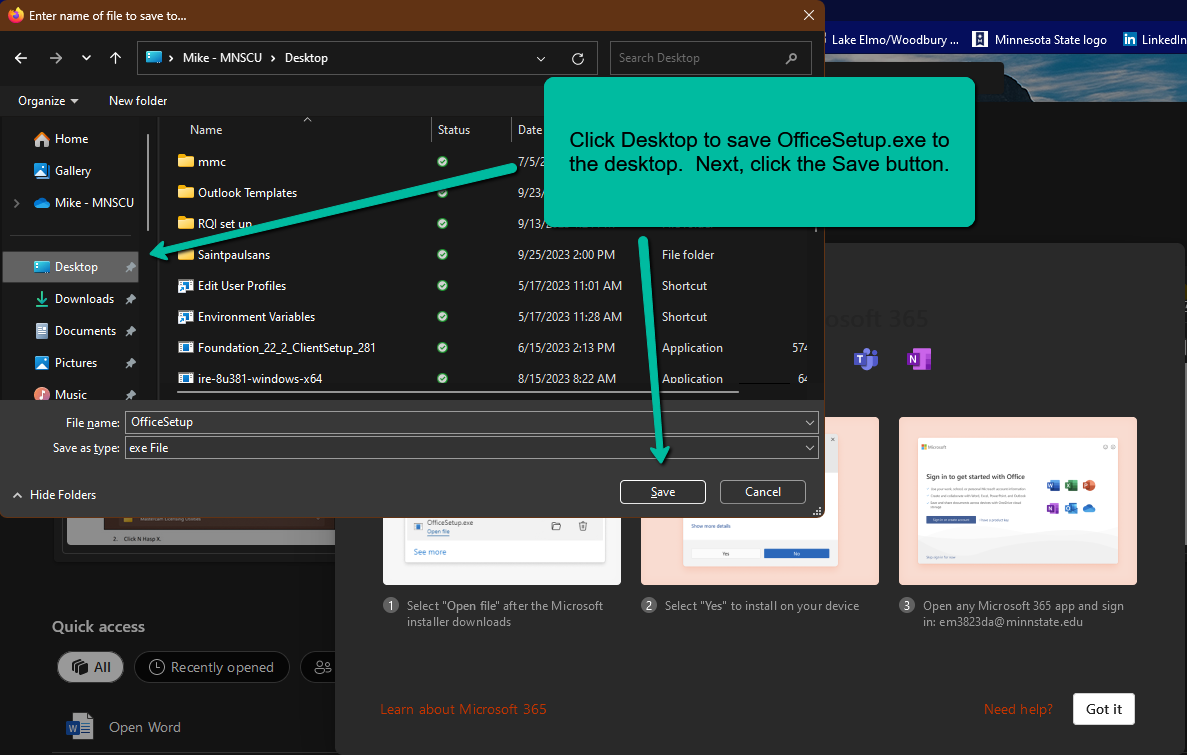
- Click the Desktop to save the OfficeSetup.exe to the desktop. Next, click the Save button.
-
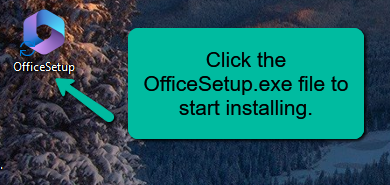
4. Go to your desktop and click on the OfficeSetup.exe file to start the installation.
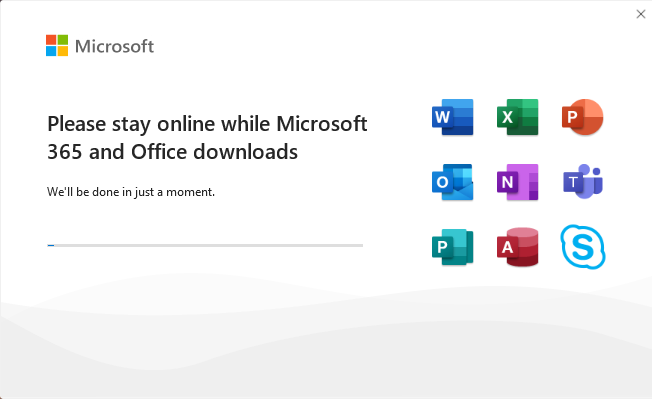
5. The Installation process will start and take about 15-20 minutes. When it is finished open an app (Word, Excel) and you’ll get prompted to activate your Office 365 license by typing in your starid@go.minnstate.edu alias. The process will be completed. Staff and Faculty will have to sign in with their starid@minnstate.edu alias to activate their software. Students/Staff/Faculty can install Office 365 on up to 5 devices.

Summary:
How to install/access Microsoft 365 applications.