Bring Your Own Device (BYOD) Printing for Android
Body
Table of contents
-
Bring Your Own Device (BYOD) Printing for Android
-
Installing and Downloading the Configuration File
-
-
2. click on the search bar and type https://www.saintpaul.edu
-
-
3. click on the 3 horizontal lines
-
4. click on the (+) to the right of "Student Services"
-
5. click on "IT Services and Help Desk"
-
6. Click on the blue "BYOD Printing"
-
7. Make sure it says "Set up printing on your Android device". If it does, select "Install or Update"
-
8. It will require you to install the "Mobility Print" app. Go ahead and click "Install"
-
9. Once it is done downloading, open it
-
10. Click on the first option and make sure all of the options are turned on like the picture below
-
11. Click on the second option and make sure all of the options are turned on like the picture below
-
-
1. Find a file to print and click on the 3 dots that says "More Options" or click the share icon
-
2. Click on the "Print" option
-
3. It would bring up some more options, and you want to click on the drop down arrow
-
4. Click "All Printers" and find "RM1262_Library_Printer" and select it
-
5. Click on the yellow printer to print
-
6. It will ask for your credential. Input your StarID as the username and your StarID password as the password.
-
7. To finish, click "Sign in and print"
Bring Your Own Device (BYOD) Printing for Android


Please make sure you are connected to "Eduroam" before continuing.
Installing and Downloading the Configuration File
1. Open up a web browser
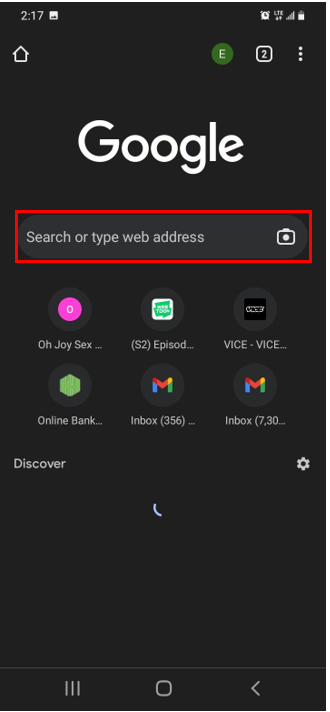
3. click on the 3 horizontal lines
4. click on the (+) to the right of "Student Services"
5. click on "IT Services and Help Desk"
6. Click on the blue "BYOD Printing"
7. Make sure it says "Set up printing on your Android device". If it does, select "Install or Update"
8. It will require you to install the "Mobility Print" app. Go ahead and click "Install"
9. Once it is done downloading, open it
10. Click on the first option and make sure all of the options are turned on like the picture below
11. Click on the second option and make sure all of the options are turned on like the picture below
Printing
1. Find a file to print and click on the 3 dots that says "More Options" or click the share icon
2. Click on the "Print" option
3. It would bring up some more options, and you want to click on the drop down arrow
4. Click "All Printers" and find "RM1262_Library_Printer" and select it
5. Click on the yellow printer to print
7. To finish, click "Sign in and print"
Tags
Details
Details
Article ID:
2183
Created
Mon 12/23/24 4:01 PM
Modified
Thu 6/25/26 11:36 AM